Trading Post
Located in Mystery Island is the infamous Trading Post. Supervised by Jhuidah, the faerie also in charge of the Cooking Pot, Neopians can easily exchange items for other items or Neopoints with each other. The Trading Post was first launched in November of 1999, making it one of the longest standing features of Neopets. Over the years, the Trading Post had a few tweaks to match the growing economy. For example, in 2018, the Neopoint limit when buying increased to 2,000,000 NP; and in December of 2025, the entire Trading Post revamped making it mobile friendly with a few fixed and added patches.
How do I get to the Trading Post?
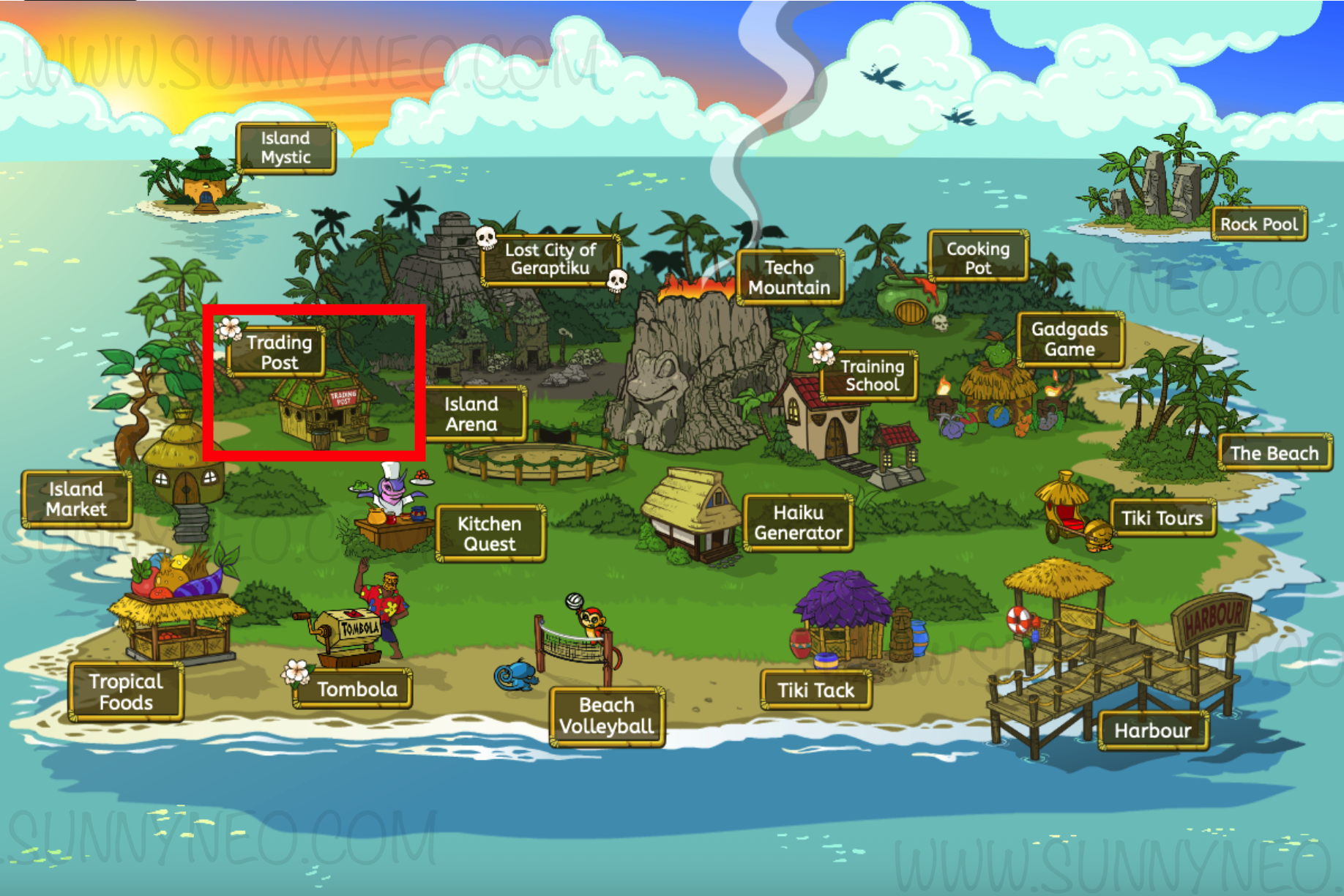
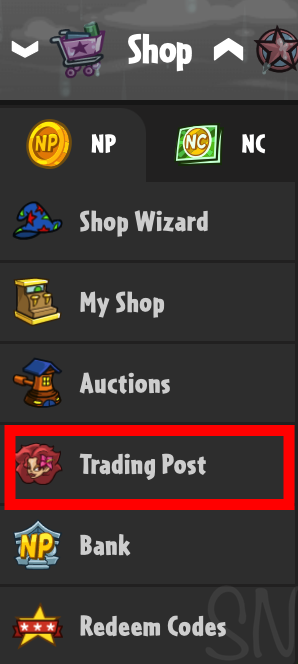
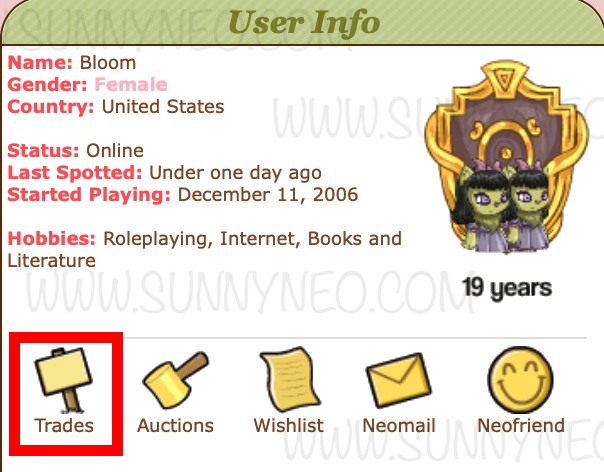
There are multiple ways to get to the Trading Post. The first is going through Mystery Island and click on the Trading Post on the map. The second is using the shortcut under the "Shop" dropdown. Another way is through your or any Neopian's userlookup under the "Trades" sign. The latter will go to all trades that belong to the Neopian you entered from their userlookup.
 | |
 |  |
Getting Started
Just like any trade, there are two roles to take on: the seller and the buyer . The buyer searches for items that they want to buy in exchange of items or Neopoints and the seller puts up a lot of items for buyers to exchange items or Neopoints for profit.
The Seller
Aside from the auction, the Trading Post is a perfect feature to sell items that exceed the max amount of Neopoints when buying at the shop. You will most likely see more items worth multi-millions in Neopian's lots. If you have an item that is worth more than 1,000,000 NPs, it is recommended to use the Trading post. You, as the seller, can ask for specific items you'd like in exchange for the item you are putting in your trading lot, a specific amount of Neopoints (called pure), or a mixture of both. Sometimes, there may not be a known amount for an item that you may be selling. When an item price is unknown throughout the Neopian community, you can keep your wishlist blank and ask for best offer.
Setting up a Trade
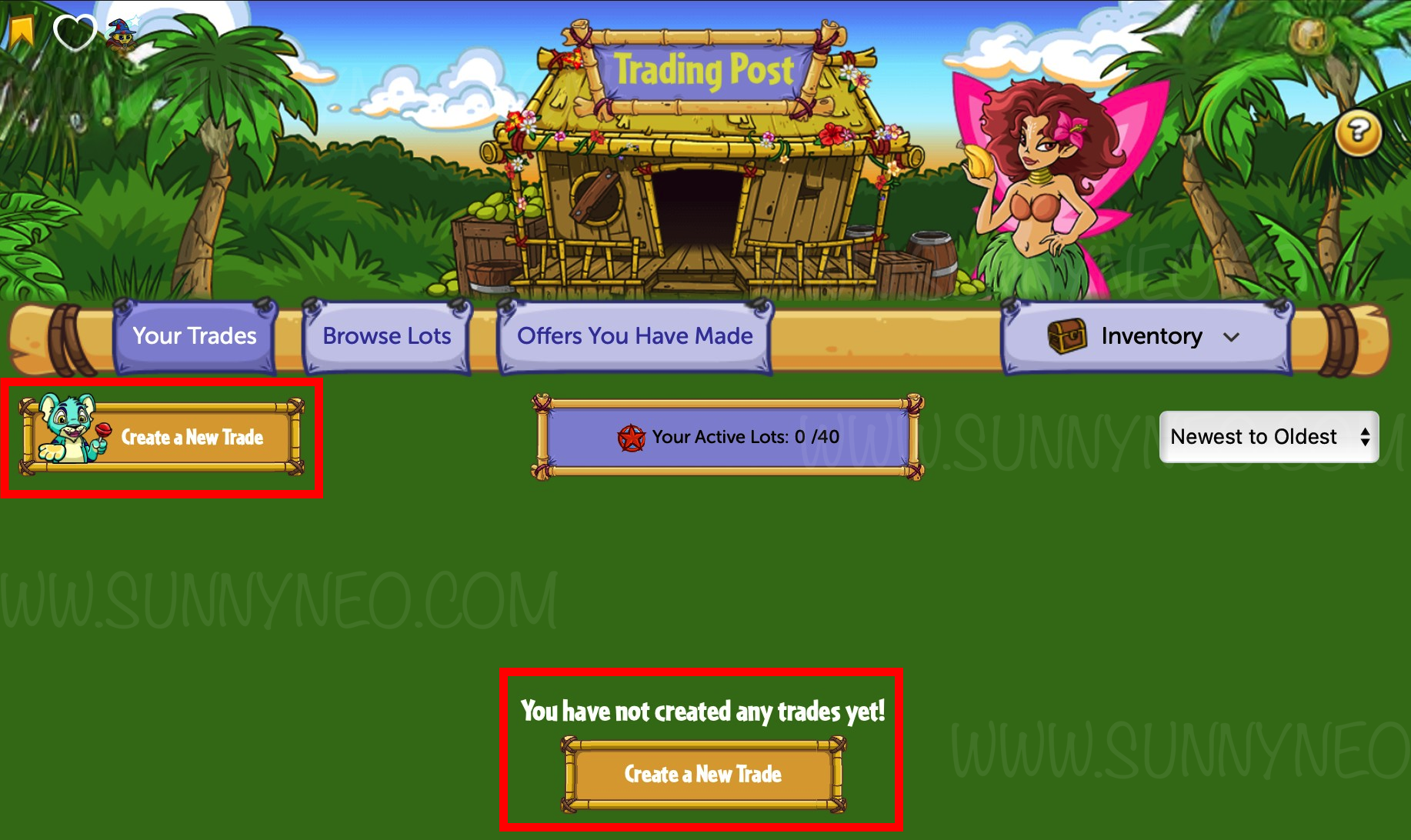
Found the item you want to sell but it's worth way too much to be put in your shop and you don't want to use the auctions? Set up a trade at the Trading Post. There's a couple ways to start a trade. If you've never started a trade, or do not have any trades in place, a button to create a new trade at the bottom of the page will appear. If you do have a trades and want to open more, you can click the button that has the blue Kougra with a lollipop and start your new trade.
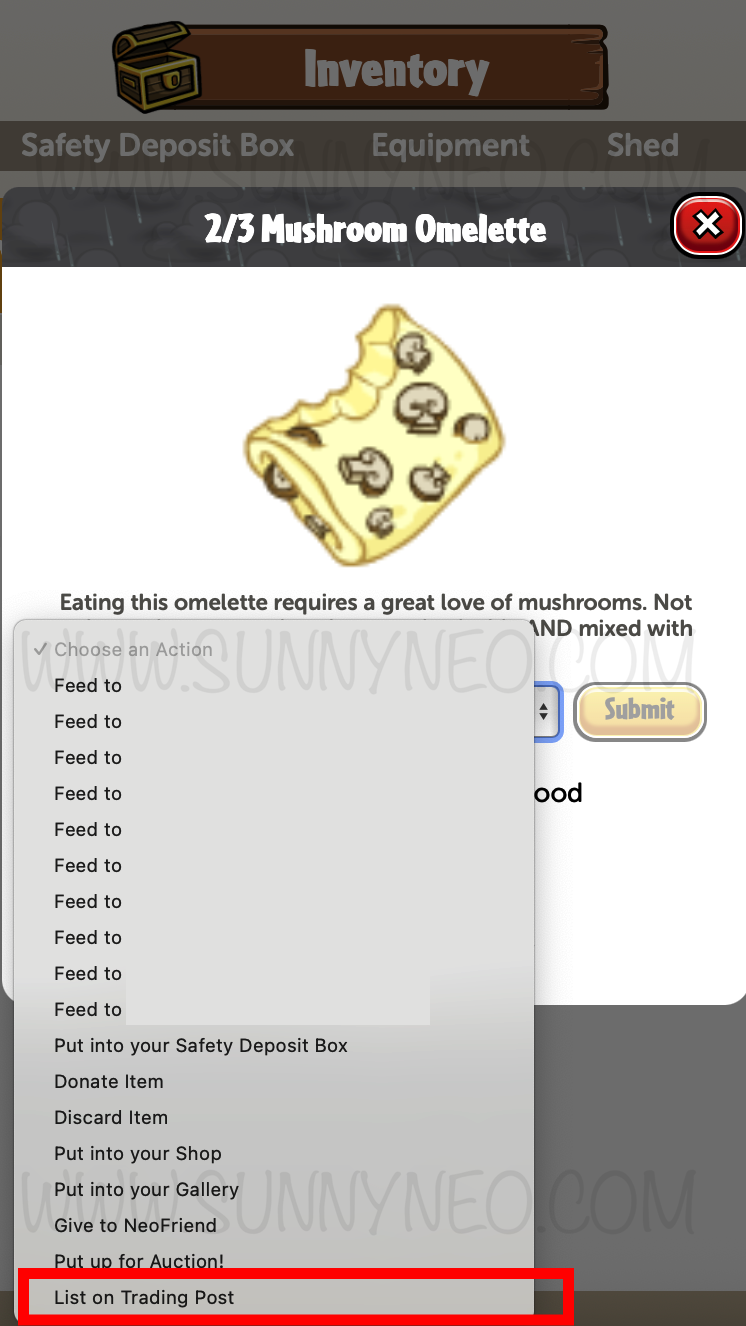
You can also start a new trade from your inventory where you can instantly put an item up for trade and it will lead you to the next step. When you go through you inventory, however, you are only able to set up a trading lot with only one item. If you're looking to include more than one item in a trading lot, you must go through the Trading Post.
 |  |
Limitations
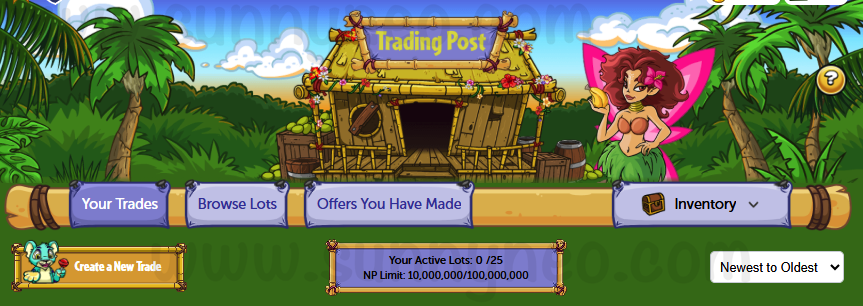
If there's more than one item that you want to trade out, note that you can only list 20 items within one lot. Additionally, you are only allocated 25 lots on your account. For every trading lot you make, you can write out your wishlist, or wants for your trade. Your ask can be about specific items, Neopoints, or if your trade is for another user all within a 500 character limit. Each trading lot are active for 2 weeks from the start of the trade. After two weeks, your lot will close and your item will be back in your inventory.
As of July 7th, 2026, another update was made to not only put a limitation on how many NPs can be transferred in trades, but also to track how many NPs have been in play on your account. The current limitation is 100,000,000 NP.
 Premium Subscribers limitations are increased compared to the original. When creating a trading lot, you can list up to 30 items with a total of 40 lots that can be created on your account. You can also ask for specifics in your wishlist with a character limit up to 750. Additionally, each lot can be active for 4 weeks, doubling the original limitation. We still recommend creating reminders for any lots made to know when the lots close to keep your item out of your inventory. Lastly, as of July 7th, 2026, a limitation of 100,000,000 NP was installed along with a NP tracker.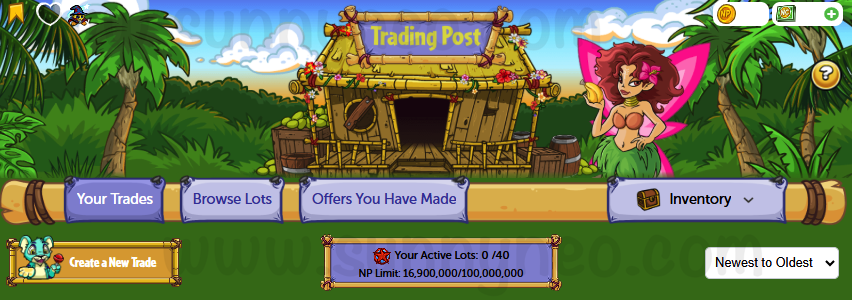
Choosing Items
Once you click on "Create a New Trade," you will be led to a view of your inventory. You can choose up to the amount allocated for your account. Keep in mind that the inventory view will only display the first 50 items held. Anything over 50 items will not be viewed and you will need to put items into your Safety Deposit Box.
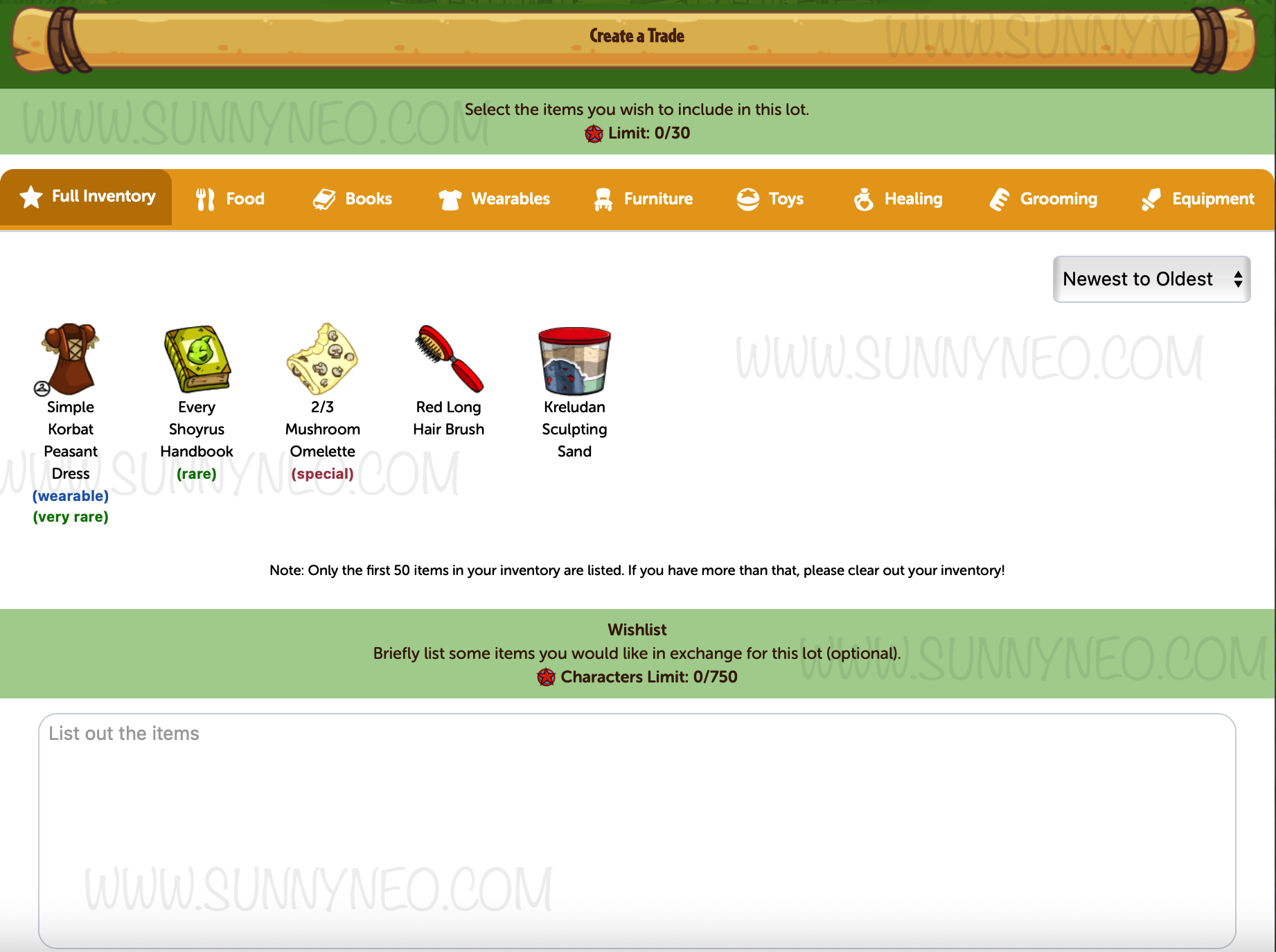
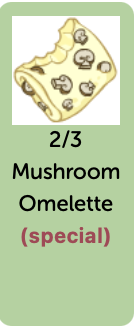
Items that are planned to be in the trading lot will be highlighted in green. Just like the original inventory view, you can find your items categorically. We recommend looking at the "Full Inventory" view to double check what items are going up for trade.
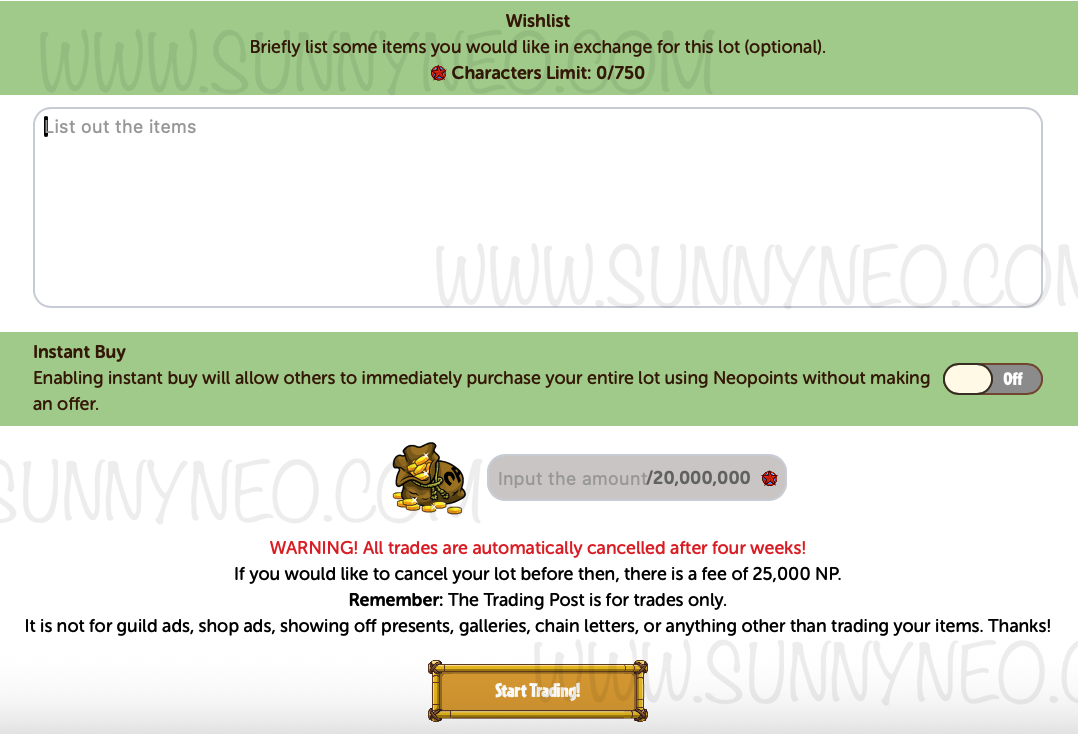
After you've chosen your item, you have a choice to state what you'd like for your item. This wishlist can state items, Neopoint amount, or both. It can also state if it is saved for another user so that other Neopians don't waste their time putting a trade in. Any items that are in your trading lot are held in your inventory and cannot be moved. In other words, you cannot place them in your Safety Deposit Box, put them in your shop or gallery, or send to a friend. They remain "frozen" in your inventory until the trade is completed or canceled.
Instant Buy
As a part of the 2025 revamp, an "Instant Buy" feature was added for those who are looking for just Neopoints, or pure. The original amount that can be asked for an instant buy is 10,000,000 NP. However, Premium Subscribers can ask for 20,000,000 NP as their instant buy. Keep in mind that if you choose to include the "Instant Buy" feature to your trading lot, anyone can instantly purchase your item without making an offer, therefore making the trade of an item for Neopoints instantly. You must toggle the button to state "ON" for the Instant Buy feature to be live. You cannot switch your lot to be Instant Buy after you've started the trade; it must be done prior to the lot being created.
As of July 1, 2026, "Instant Buy" became hidden on lots that belong to users who have maxed out their daily receipts (which is 100,000,000 NP) and there is a counter in its place.
Naming Your Price
This is perhaps the biggest question for many. You have an item and it's nowhere to be found: no one has it up on their trading lots and it's not even found on auction. What do you do? While some people search other helpful guides, there are many who can help determine how much something should be dependent on how rare the item output is and its history.
Once your lot has finished and you've named your price for pure Neopoints and/or an item, you can advertise on the Trading Post NeoBoard in hopes that someone will bite and make a trade with you!
Note: if you cancel your lot before your allocated time your lot can be active, you must be pay 25,000 NP. If your lot is not getting any bites, we recommend waiting out the 2 or 4 week time for it to naturally cancel. If you have "Instant Buy" on your lot, we do recommend checking in with the pricing of your item daily and canceling your lot if your item's price has gone up (making your price lower). It will be worth spending 25,000 NP than losing millions because of a price increase.
Accepting or Declining a Trade
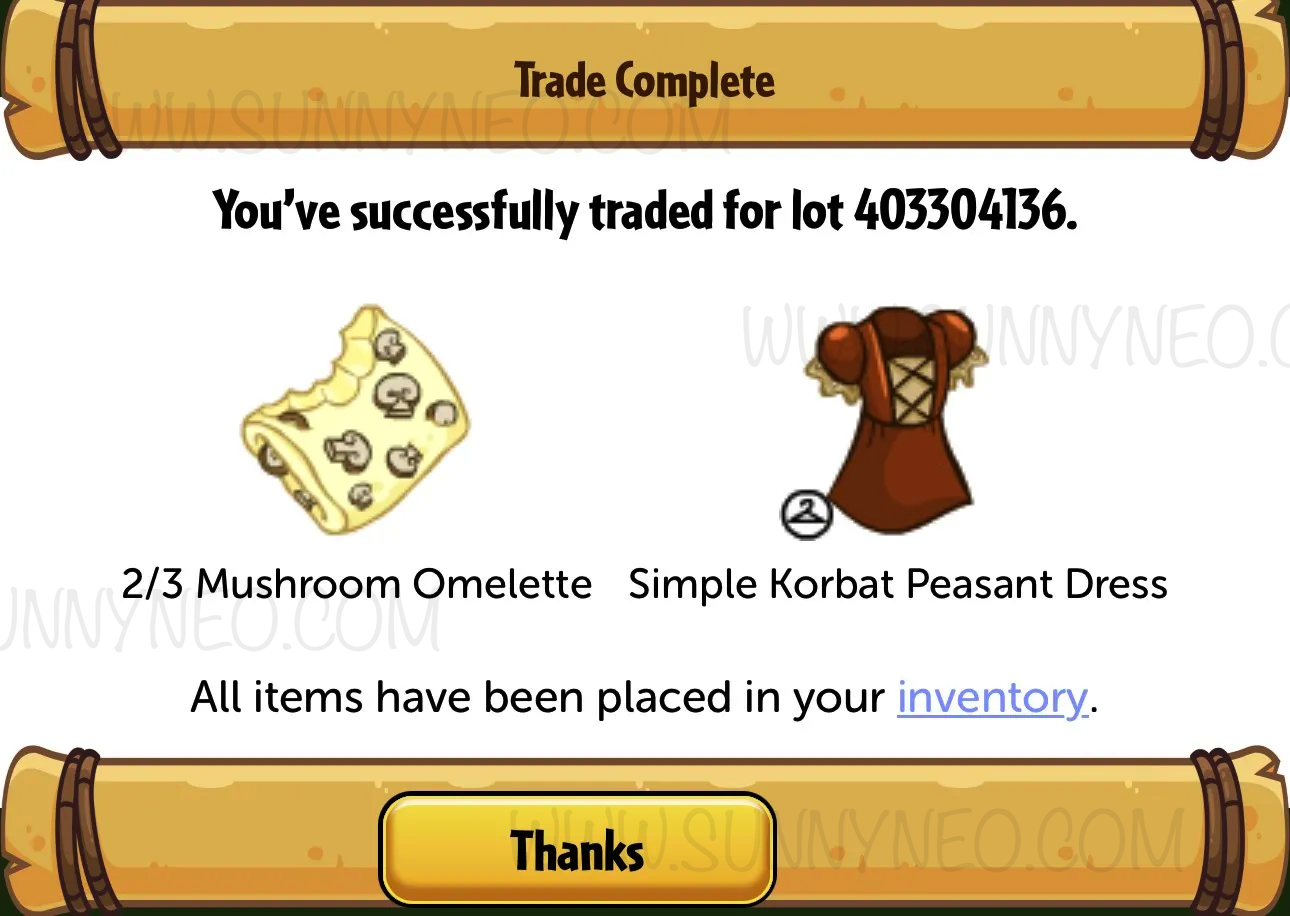
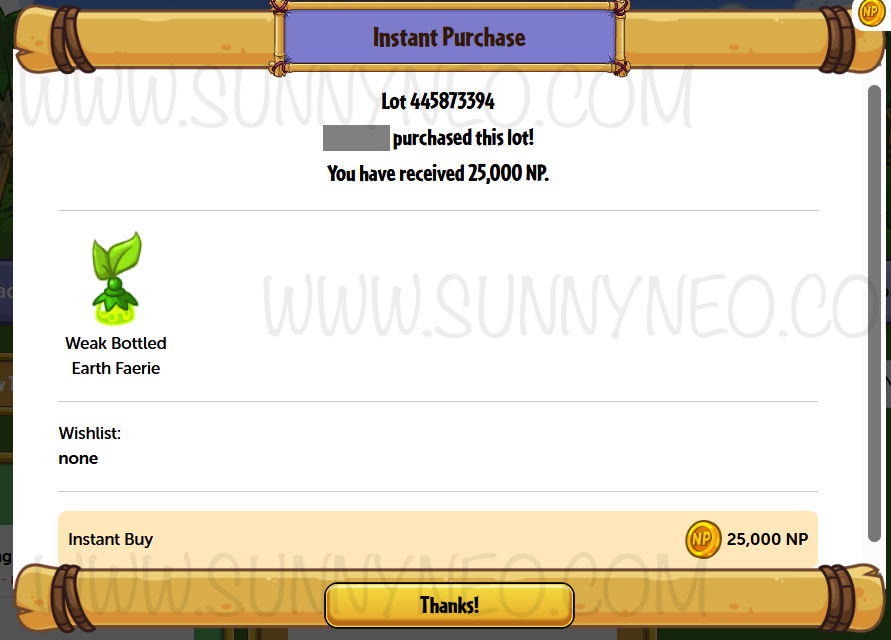
When a buyer comes in and makes an offer, you have a choice to either accept the exchange or decline it. When you decline the offer made to you, it will not be listed in with your trading lot. When you accept the offer made to you, a pop-up will appear confirming that the trade has been completed and the items that were offered in place of the item you were trading away will be placed in your inventory. If an "Instant Buy," a pop-up will also share that an automatically accepted offer of the amount of Neopoints you asked for has been completed.
 |  |
The Buyer
The buyer is someone who makes the purchase on someone else's trading lot using Neopoints and/or items. They can either provide the seller with their wishlist of items and/or Neopoints, make an offer of what they think is best with their items and/or Neopoints, or instantly buy an item of a lot that has "Instant Buy" turned on. It is most likely that buyers resort to auctions and the Trading Post when an item is too expensive for shops and are difficult to find.
Searching Trading Lots
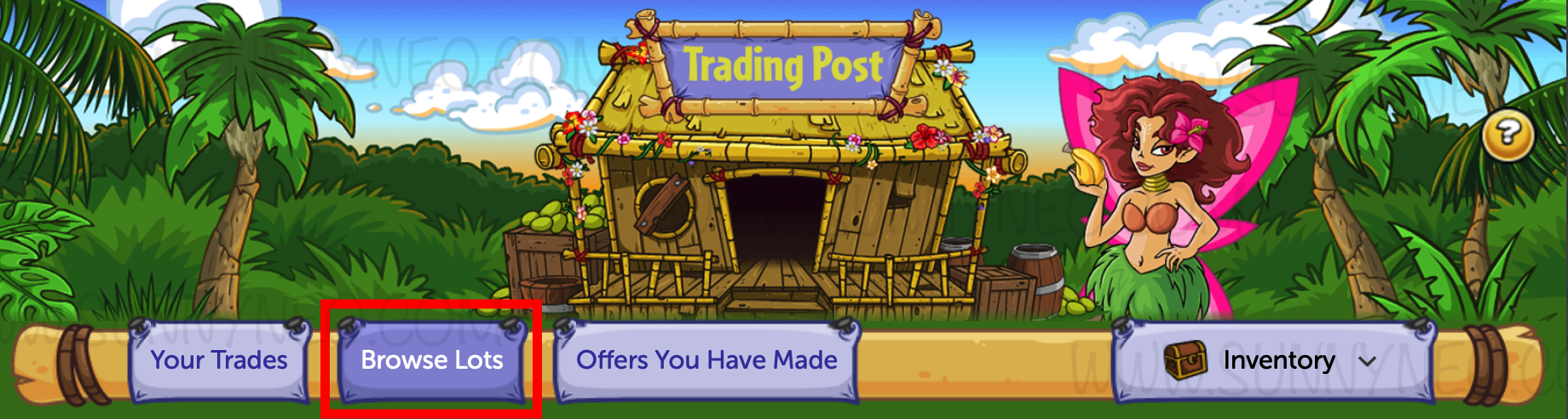
You can either browse lots or go directly to a user who you plan on buying from. To find a random assortment of trading lots for leisure viewing, you can click on "Browse Lots."
If you have a specific user that you plan on buying from, or even have a need for a specific item that you're hoping someone has up for trade, you can use the nifty updated search bar. The search bar allows you to filter out items that are identical to its name or similar (containing), find specific users by placing their username, and even finding the exact lot with its lot number.

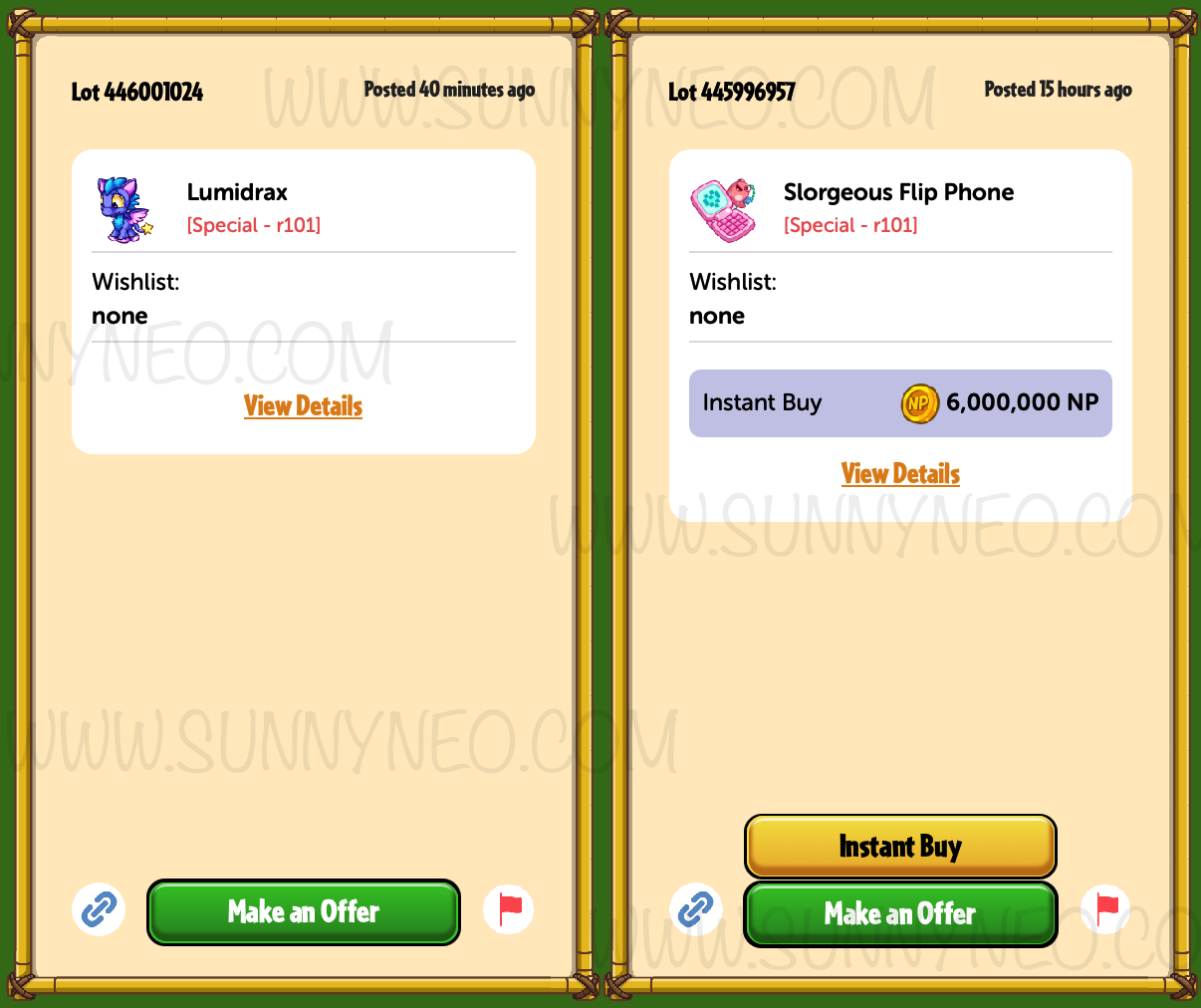
Once you've found the item and/or user you've searched for, their trading lot will pop up. The lot contains the trading lot number, the item(s) you wish to buy, a wishlist of what the seller is looking for, and an option of making an offer, or if the seller turned it on, the opportunity to "Instant Buy." On either side of the "Make an Offer" button, there are two pictures present: a picture of a hyperlink and a picture of a flag. The hyperlink is a link that links back to that specific lot. The red flag is the reporting button if the trading lot is deemed inappropriate or does not follow TNT rules.
Making an Offer
When making an offer, it means you are ready to purchase an item that you need or want. If the lot does not have an Instant Buy button, you will then need to make an offer on the item. When offering items, you can only offer up to 15 items per trading lot.
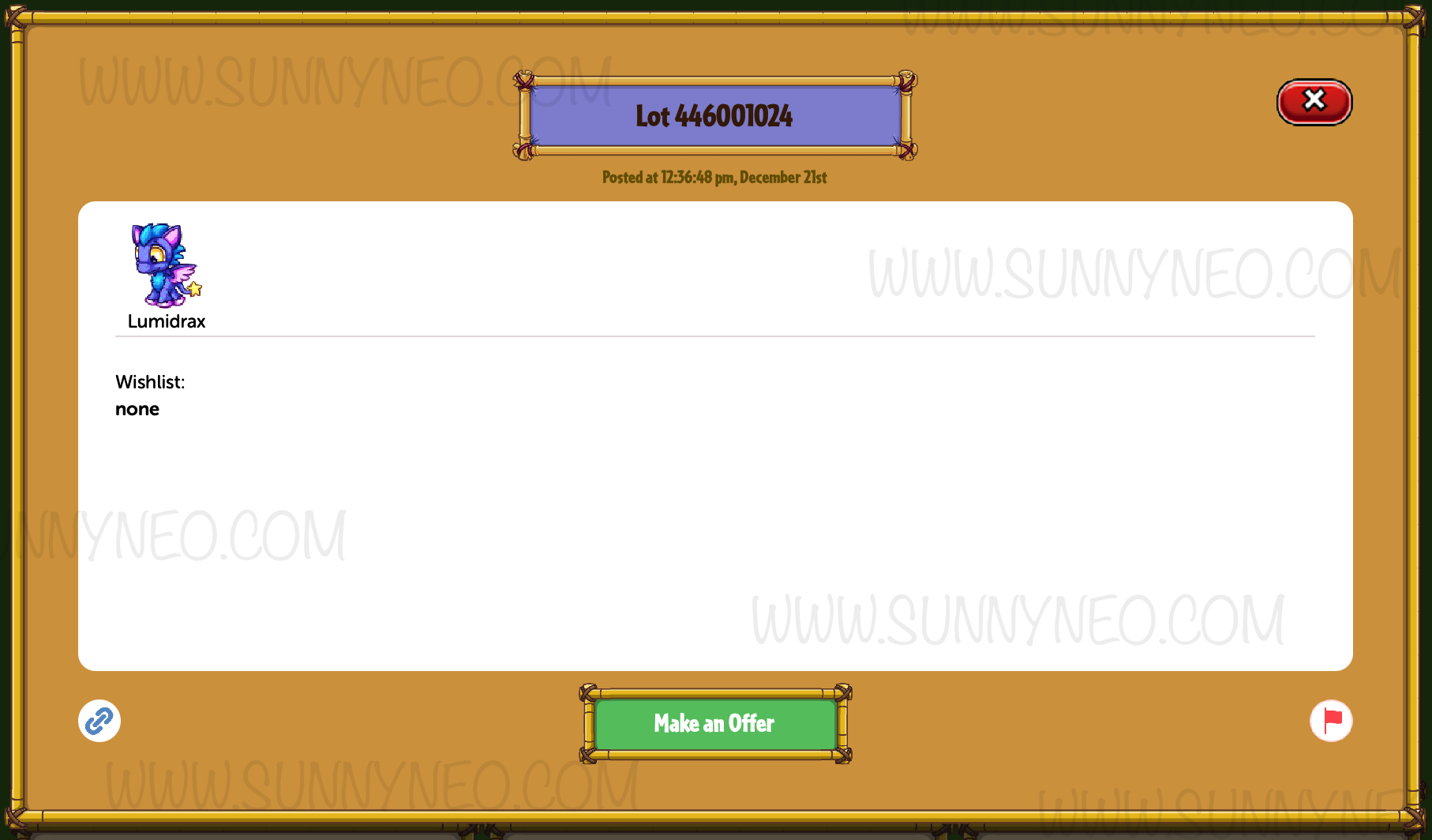
Premium Subscribers can offer up to 25 items per trading lot.Before making an offer, you can make sure that all information is seen by clicking "View Details" below the wishlist section of the trading lot. You'll then get a pop-up that will bring together any information needed before making an offer on that lot. Once you feel certain that you can match the needs of the user with a fair exchange, then click "Make an Offer."
When you click to make an offer, you will be taken to a page that will include your inventory. Keep in mind that the inventory view will only display the first 50 items held. Anything over 50 items will not be viewed and you will need to put items into your Safety Deposit Box. Items that are planned to be offered up for trade will be highlighted in green. Just like the original inventory view, you can find your items categorically. We recommend looking at the "Full Inventory" view to double check what items are going to be in the trade. Items that are offered in for trade will be held in your inventory where you cannot touch them until the offer has been approved or denied.
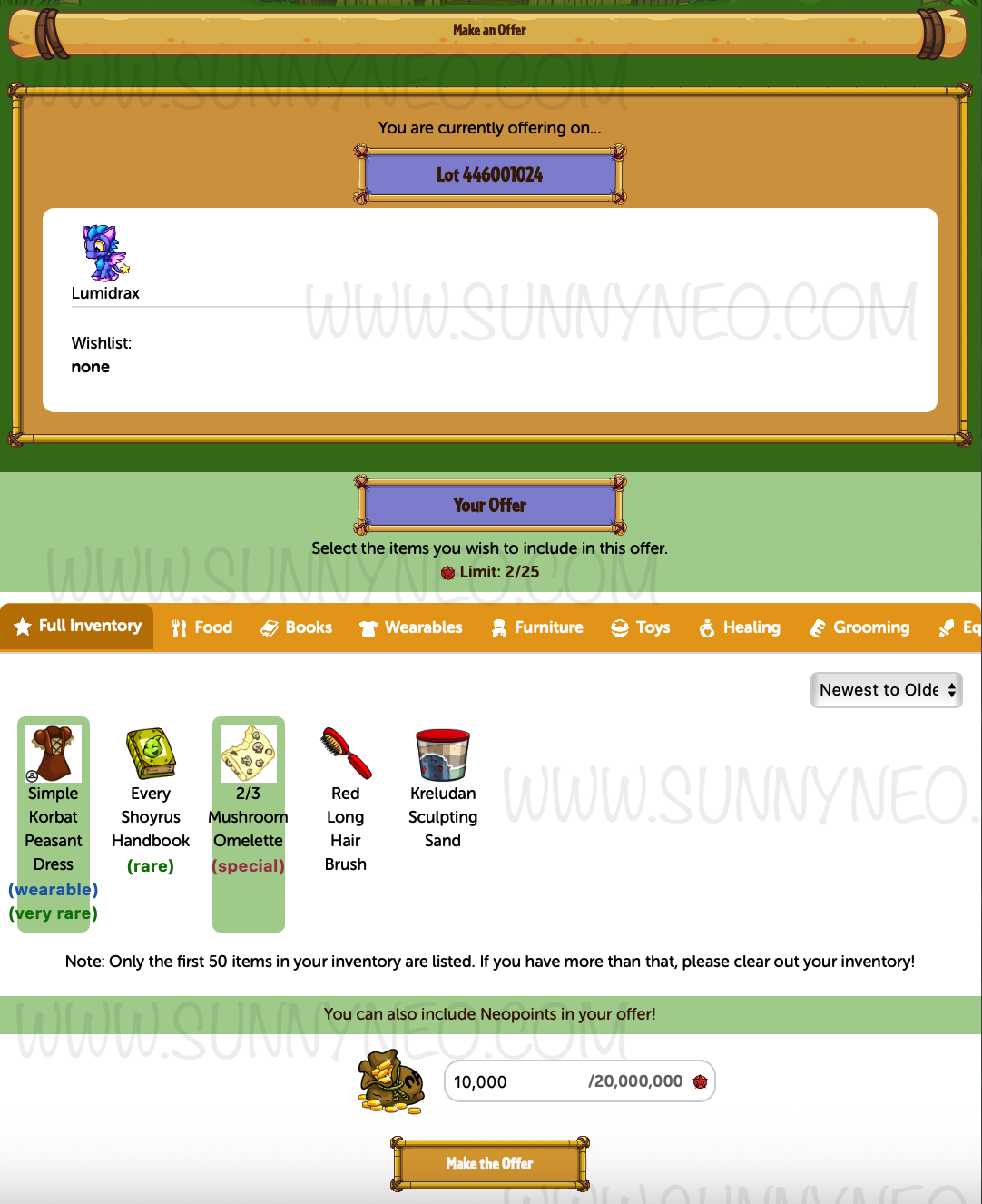
Once you feel confident that your offer is fair and made, you can click "Make the Offer" once more. It will then send a notification to the owner of the trading lot and they will see your offer and decide whether or not to accept it. If approved, your items will disappear in your inventory and the item you wanted will be in its place. If denied, your items will not be on hold anymore and can be free for you to use.
Checking on Offers That Have Been Made
Sometimes it can be hard to keep track of one or many offers you've made. You can often check back to what you have offered and see how long you have left of waiting for the exchange to be approved. To view your offers, you can click "Offers You Have Made" at the Trading Post top navigation bar.
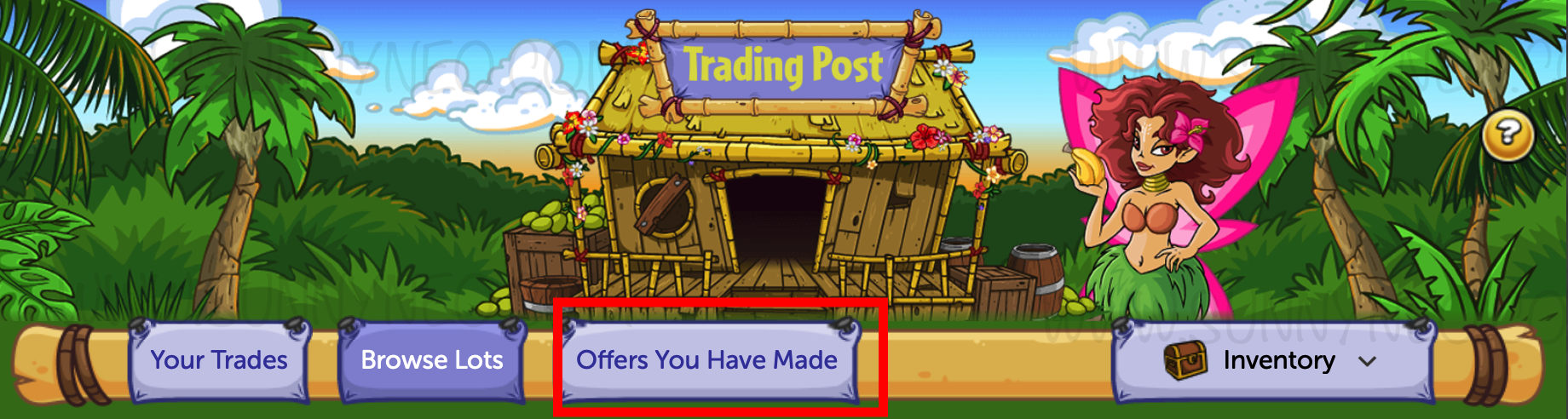
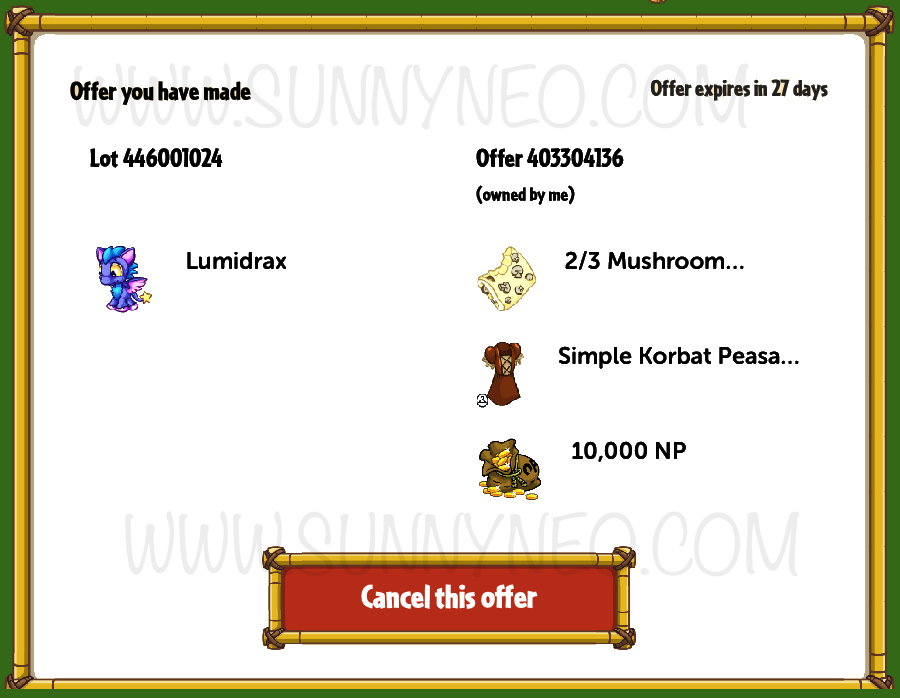
It will then lead you to a page where your offers will be listed. It shows you the other user's lot and your offer of items and/or Neopoints. Dependent on your needs, you also have the option to cancel, or withdraw, your offer on the trading lot.
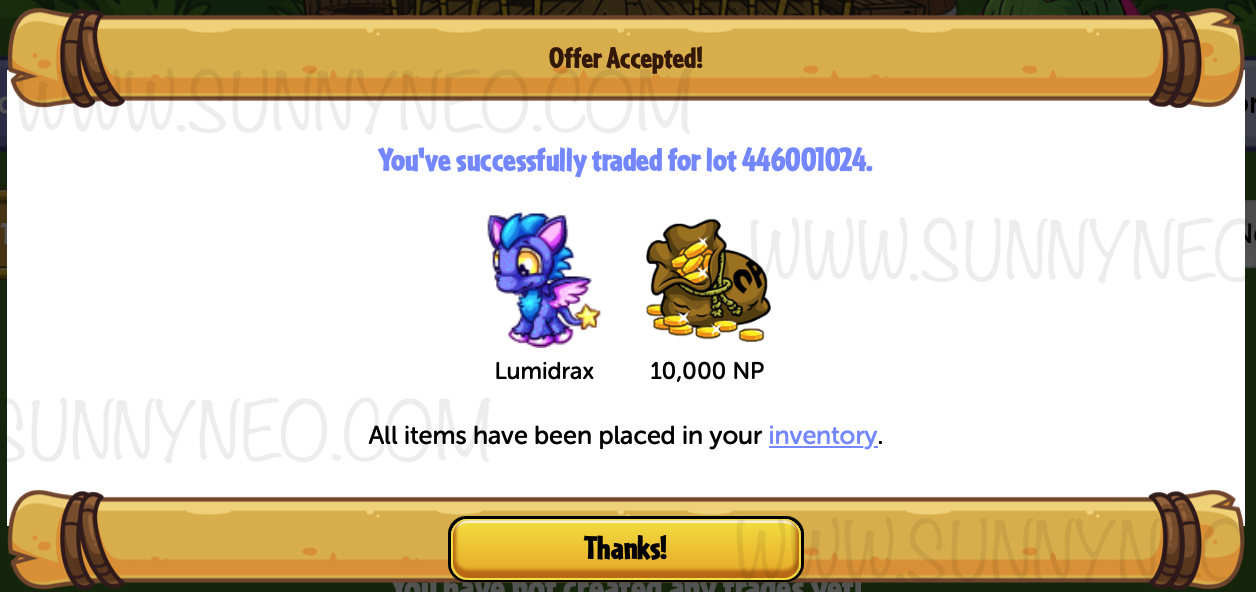
When your offer has been accepted, a pop-up will occur when you go to the Trading Post. It will let you know that it your offer is accepted and that all items you wanted or needed is now in your inventory.

 {{ loadingMessage || 'Loading, one moment please'}}